[TSG] The Most Powerful Shortcut In Excel (That No One Knows!)

Excel Education for the REAL WORLD!
I hope you are doing well! I'm going to be sending you amazing Excel tips over the next 5 days that will hopefully add up to saving you a bunch of time while interacting with your spreadsheets going forward.
I hope you enjoy this one!
Today we are going to cover what I believe to be the most powerful key on your keyboard to use in Excel. The specific key I'm talking about is your F4 key.
There are actually TWO extremely powerful functionalities triggered by this shortcut and very few Excel users know both of them.

In Excel, you can use cell references in formulas to refer to specific cells or ranges of cells. When you copy and paste a formula to another cell, Excel automatically adjusts the cell references based on the new location. However, if you want a cell reference to remain fixed regardless of where you copy the formula, you will need to use absolute cell referencing.
To do this, you need to add a dollar sign ($) before the row and/or column reference in the cell reference. For example, if you want to fix the reference to cell A1, you can write it as $A$1.
Instead of typing the dollar signs manually, you can use the F4 keyboard shortcut to quickly toggle between the four types of cell references: absolute ($A$1), relative (A1), and mixed ($A1 or A$1).
You can also utilize this functionality on a range reference such as =SUM(A1:A10). Simply use your mouse to highlight the colon symbol (:), then proceed to use your F4 key. Both cell references associated with the highlighted colon will cycle through the four types of cell references.
Microsoft calls this shortcut the "Repeat" shortcut. Essentially what it does is repeat the last action you performed in Excel. For example, what if you need to insert a bunch of columns sporadically throughout your spreadsheet?
You have one of three options:
- You can right-click and insert columns individually throughout the spreadsheet (I've definitely done this in the past and it is painful!)
- You can hit up Google and find out what the keyboard shortcut is for inserting a column and then use it (another good option, but you will probably forget this shortcut if you are not using it every day)
- You can insert a column ONCE and then continue using F4 to insert columns going forward.
The HUGE advantage to using F4 is you don't have to memorize a bunch of obscure keyboard shortcuts you only use once in a blue moon (very infrequently). Just do your action manually once and continue repeating it with F4. It's really that simple and if you already currently use F4 to modify your formulas, you probably already have it memorized as a key to use.
I use the repeat F4 shortcut all the time to:
- Format cells with particular colors
- Insert/Delete things
So try to get it in your head to start using this powerful shortcut and then start spreading the word to all your colleagues. I promise they will think you are an Excel genius after sharing this tip!
I've written A LOT about Excel over the years. Here are a few articles that might teach you something new today!
Over the years I've solved issues throughout my career by building my own Excel Add-in solutions.
With the launch of my website, I was able to take these tools I had developed for myself over the years and use them to fund operating TheSpreadsheetGuru website.
I tend to never give out discounts except during a new product launch, so this is definitely something that will not be commonplace going forward. As a special welcome gift to you, I'd like to gift you a 30% off discount code that you can apply to any purchase in my product store (excludes T-shirts and other physical merchandise).
(excludes physical merchandise)
Here's what folks are purchasing the most of to help them take their Excel work to the next level!

Create and save icons to your Excel Ribbon plus many more tools to help auditors, accountants, & finance folks. More >>

Store your favorite custom number formats to buttons in your Excel Ribbon. More >>


Each of my Excel add-ins or spreadsheet templates comes with a 30-day money-back guarantee so please don't feel hesitant in using this gift to make a purchase. Most of my add-in products also have a 2-week trial period that you can utilize to make sure the tool is right for you before making your purchase.
This offer is only valid for the first 7 days after you've subscribed to this newsletter. After that time, you will be locked from the coupon code.
You can check out even more of my product offerings by visiting my online store.
Today's random product recommendation is a game that absolutely changed my mindset about money.
This game was developed by Robert Kiyosaki. You might recognize his name from the very popular book Rich Dad Poor Dad. While it is a fantastic book that (in my opinion) should be required reading in school, that book was actually written as an instruction manual to sell this very board game.
I was luckily introduced to this game right after college and it forced me to think about how to reduce my monthly bills, pay off debt, and the difference between personal assets and liabilities.
While it is pretty expensive compared to your typical board game, I view this as an investment that is fun to play and will also allow you to transfer game-winning strategies into strategies you can use to better manage your finances in real life!
Also, if you know anyone who really likes spreadsheets, budgets, or numbers, this makes a great gift!
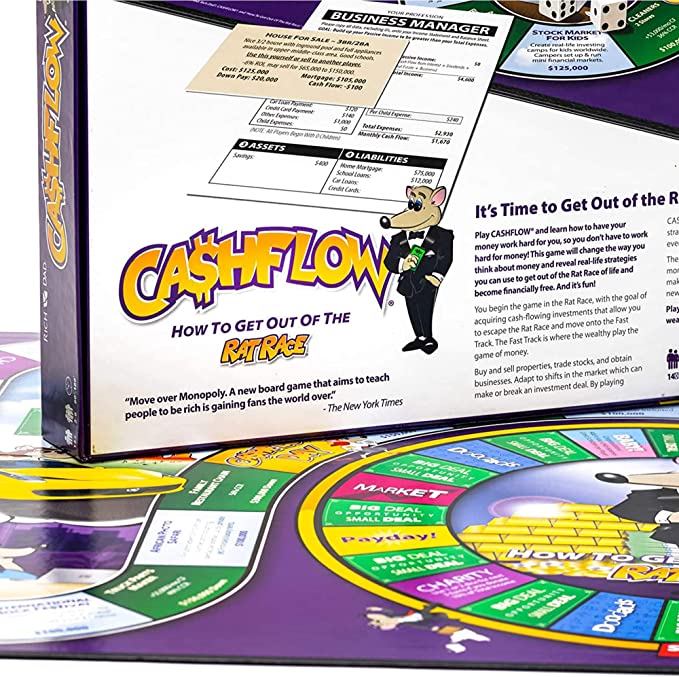
Teach yourself and family how to manage money in this fun cross between Monopoly and Game of Life.
If this product interests you or you have some shopping to do on Amazon, make sure to use my "Check It Out button link above. If you buy anything within 24 hours after clicking this link, a 1-2% portion of your sale will go directly to TheSpreadsheetGuru (at no cost to you).
This is a fantastic way for you to support the cost of running this newsletter without having to spend any extra money. I appreciate your willingness to help support this newsletter!
You are more than welcome to invite any one of your friends or colleagues who might also benefit from this newsletter. Simply send them the below link and they can get signed up for free as you did.
Newsletter Link: TheSpreadsheetGuru.com/newsletters
Hopefully, this newsletter brought you some value today. I absolutely love sharing the tips I've come across or developed over the years and also receiving feedback from everyone.
If you have any thoughts on the topics covered in this email, feel free to respond back.
Tomorrow, we'll be discussing something you've likely been doing wrong in Excel this whole time! Can you believe that? See you tomorrow!
Chris
Founder, TheSpreadsheetGuru.com




PO Box 150
Lewis Center, OH 43035
United States of America



You received this email because you
signed up on our website or
purchased something from us.