How to create GIFs with beautiful code animations 🤩
How to create GIFs with beautiful code animations 🤩
Hi 👋
I’ve been creating content focused on Swift and iOS for a couple years and here’s the question I’ve been asked the most:
“How do you create these GIFs with the animated code?”
I got asked this question so many times that I’ve actually written down the short answer in the banner of both my Twitter and Linked profiles 😅

And in this email I’m going to walk you in details through all the steps to create a nice animation like this one:
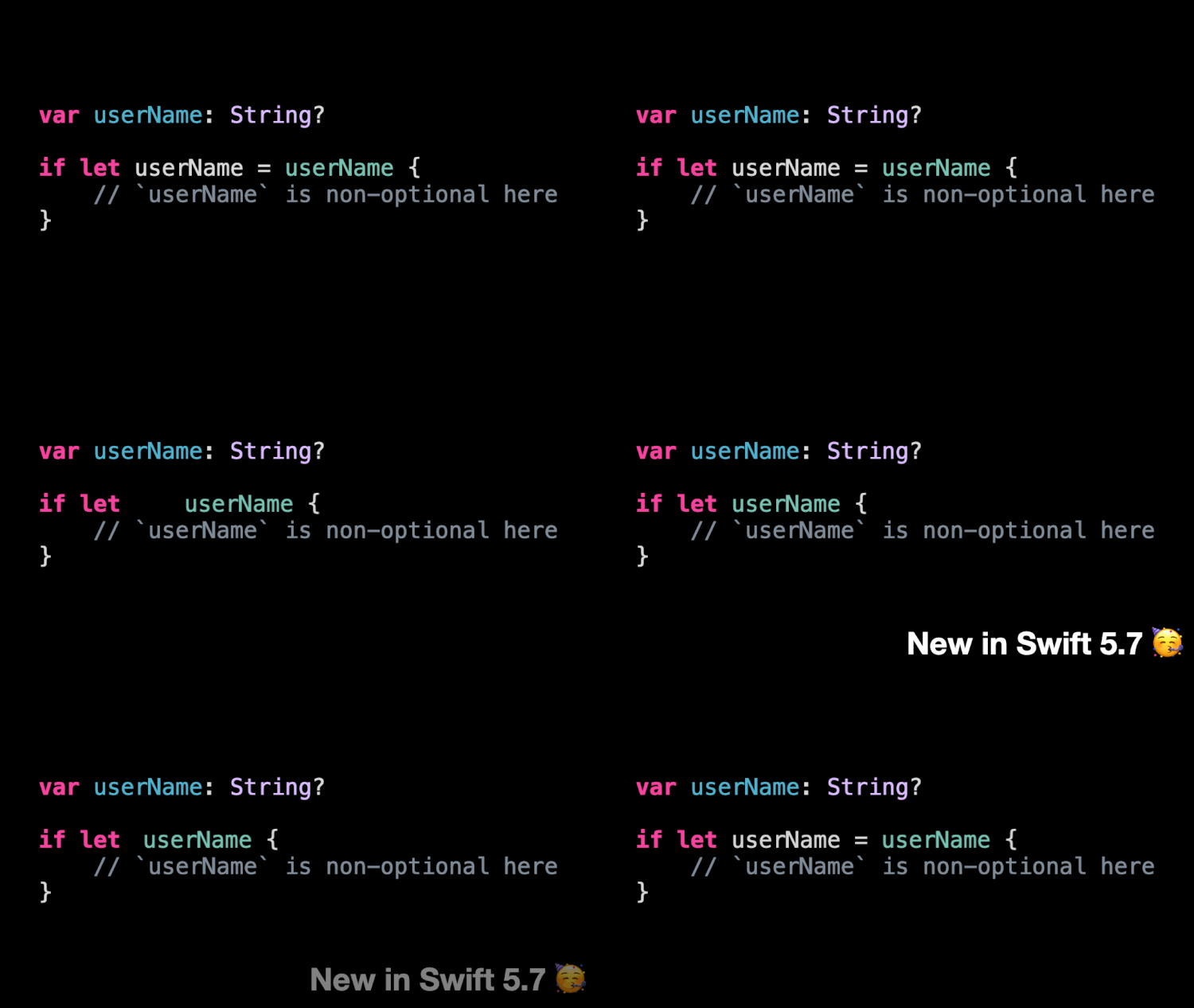
First, open Xcode, go to the Preferences and open the Theme tab:

As you can see, I’ve selected the theme Presentation (Dark).
But I’ve made one important change: I updated the Background color to be pure black:

With that done, the next step is to write the code we want to animate:

After that, it’s time to open Keynote and create a new document.
Choose the Black theme, add a Blank slide and delete the title slide.
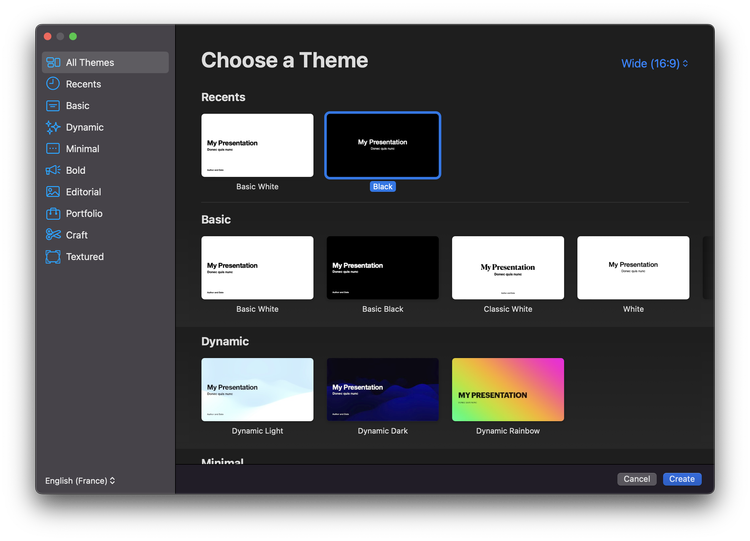

Then go back to Xcode, select the code and copy it to the pasteboard:

Now switch back to Keynote and paste the code.
You’ll notice that both the formatting and syntax coloring have been preserved 🤩

Obviously, we need to make the code a little bit bigger: 74pt is a good size for that amount of code:

We now have everything we need to create our animation 🔥
First, duplicate the slide and update the code in the new slide:

Here the change is simple: we just need to remove some code, so we can make that change directly in Keynote.
Of course, for more complex changes, we would update the code in Xcode and then copy/paste back to Keynote 👌
After that, we add the text “New in Swift 5.7🥳”:

Now it’s time we actually implement the animation 🪄
For that, select both slides, go to the Animate inspector and add a Magic Move transition:

Make sure to select the Match option “By Word”: it will make Keynote automatically animate the changes between the two slides at the word level.
I would also recommend lowering the duration of the transition to “1s”, for a more dynamic feeling.

You can click on Preview to check how the animation will look like!
Finally, last step: we need to export our animation 🎞️
To export as a GIF, go to File, Export To and Animated GIF…

Makesure to set thesame options as I have:
Export slides from 1 to 2 (by default only slide 1 will be selected)
Highest resolution possible
Frame rate: 30fps
Highest Auto-advance timing: 1s

When it’s done, click on Next…, select where you want to save your beautiful GIF and you’re done 🥳
Thanks to the combined powers of Xcode and Keynote, we’ve made a beautiful code animation and it only took a few minutes 🪄
That’s all for this tutorial, I hope you’ve enjoyed it 🙌
If you want to download the Keynote file, it’s available here 👌
Bonus: if you want to export your animation with a higher quality than what a GIF allows, you’ll be happy to learn that Keynote is also able to export in 4K 60fps 🤩


That’s all for this email, thanks for reading it!
If you’ve enjoyed it, feel free to forward it
to your friends and colleagues 🙌
❤️
E-mail sent by Vincent Pradeilles, Lyon, France 🇫🇷
Powered by Squarespace
4 links in this issue
- Swift with Vincentq8w2.engage.squarespace-mail.com
- GIFs with the animated codeq8w2.engage.squarespace-mail.com
- available hereq8w2.engage.squarespace-mail.com
- Squarespaceq8w2.engage.squarespace-mail.com
Sent by Swift with Vincent Newsletter. Links that track readers or name the subscriber were removed from this copy; its images still load from the sender's own servers. If you publish this newsletter and want an issue corrected or removed, write to us.